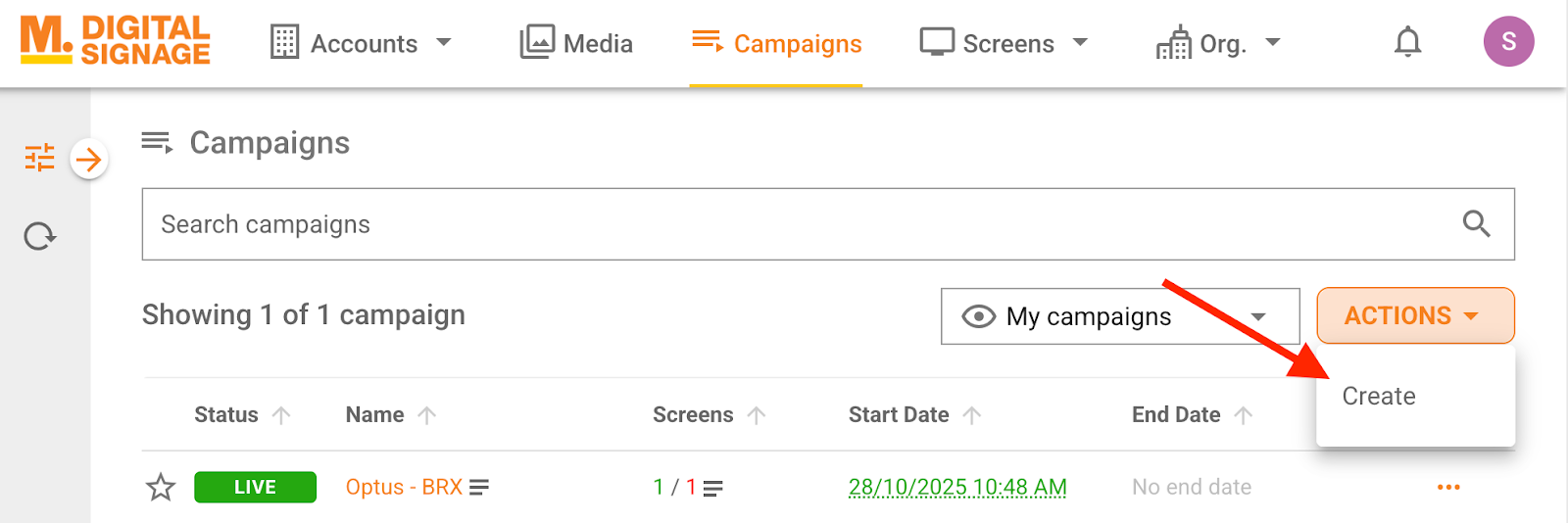
Click on “Campaigns” in the top menu, then click “Create” from the “ACTIONS” menu.
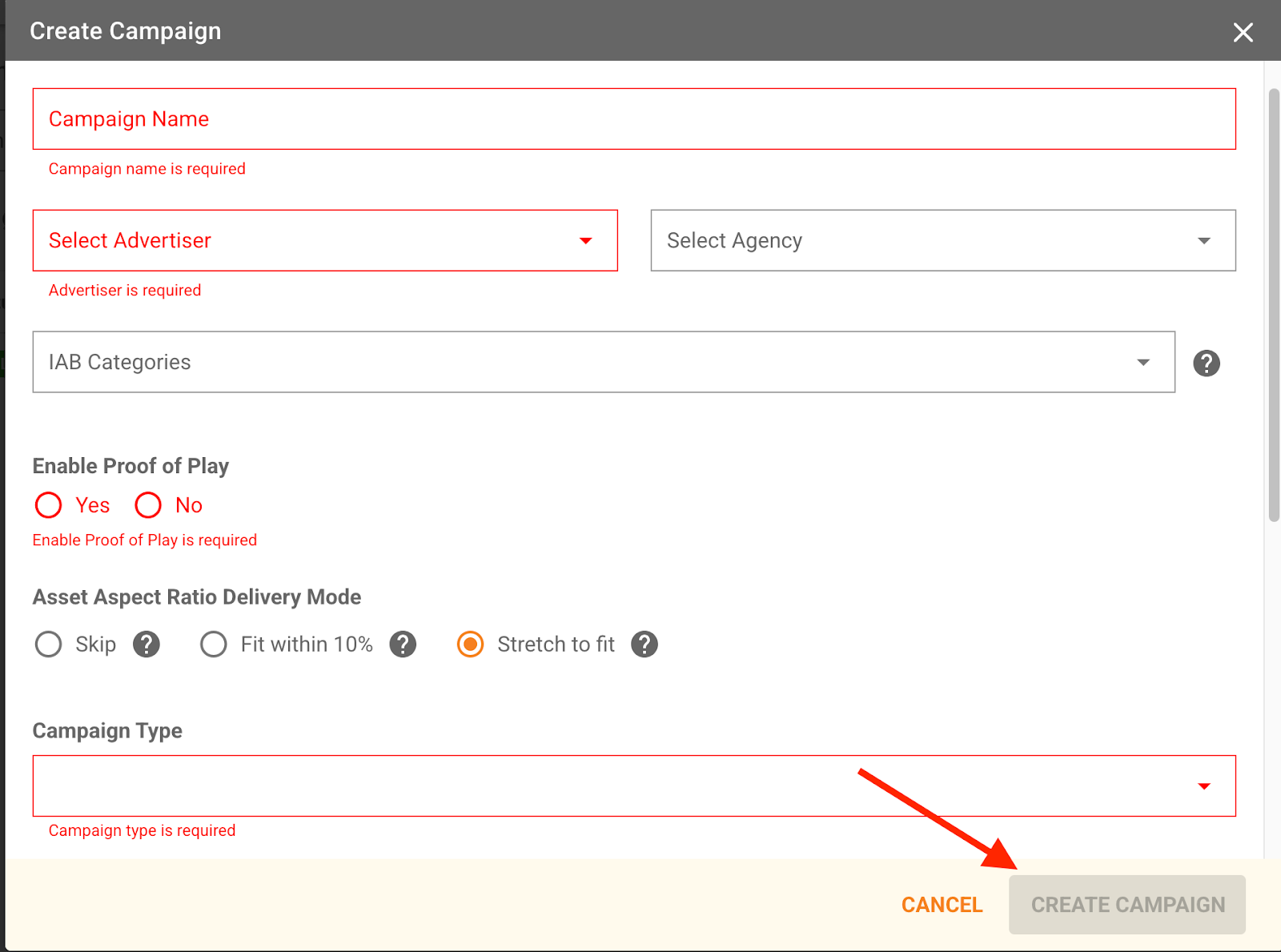
Fill in the required campaign information and click “CREATE CAMPAIGN.” You will then be redirected to the “Media” tab of the campaign to add your content in the same way described in the previous section, “Managing Content in an Existing Campaign”.
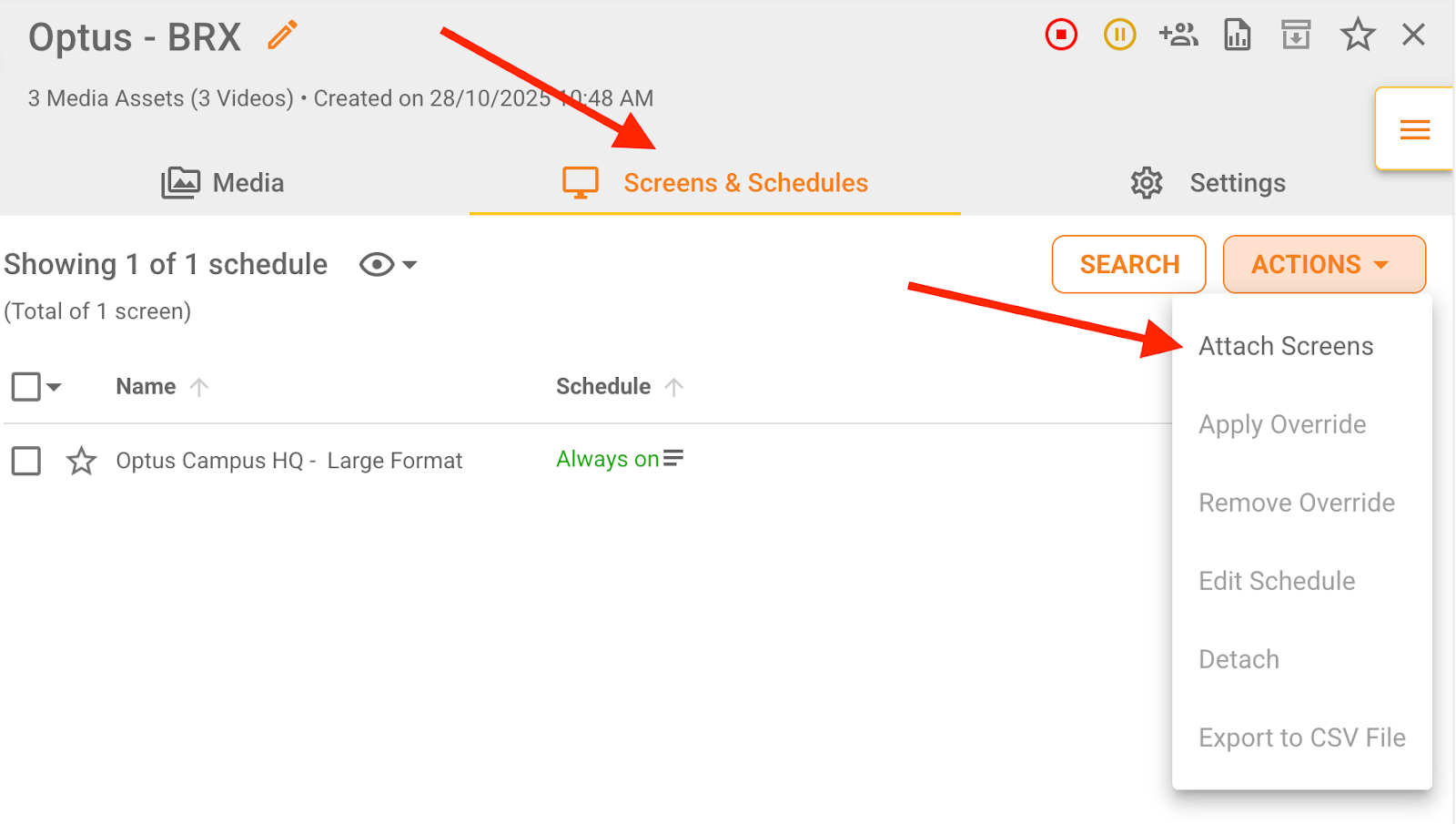
To add the newly created campaign to your screen, click on the “Screens & Schedules” tab, then click “Attach Screens” from the “ACTIONS” menu.
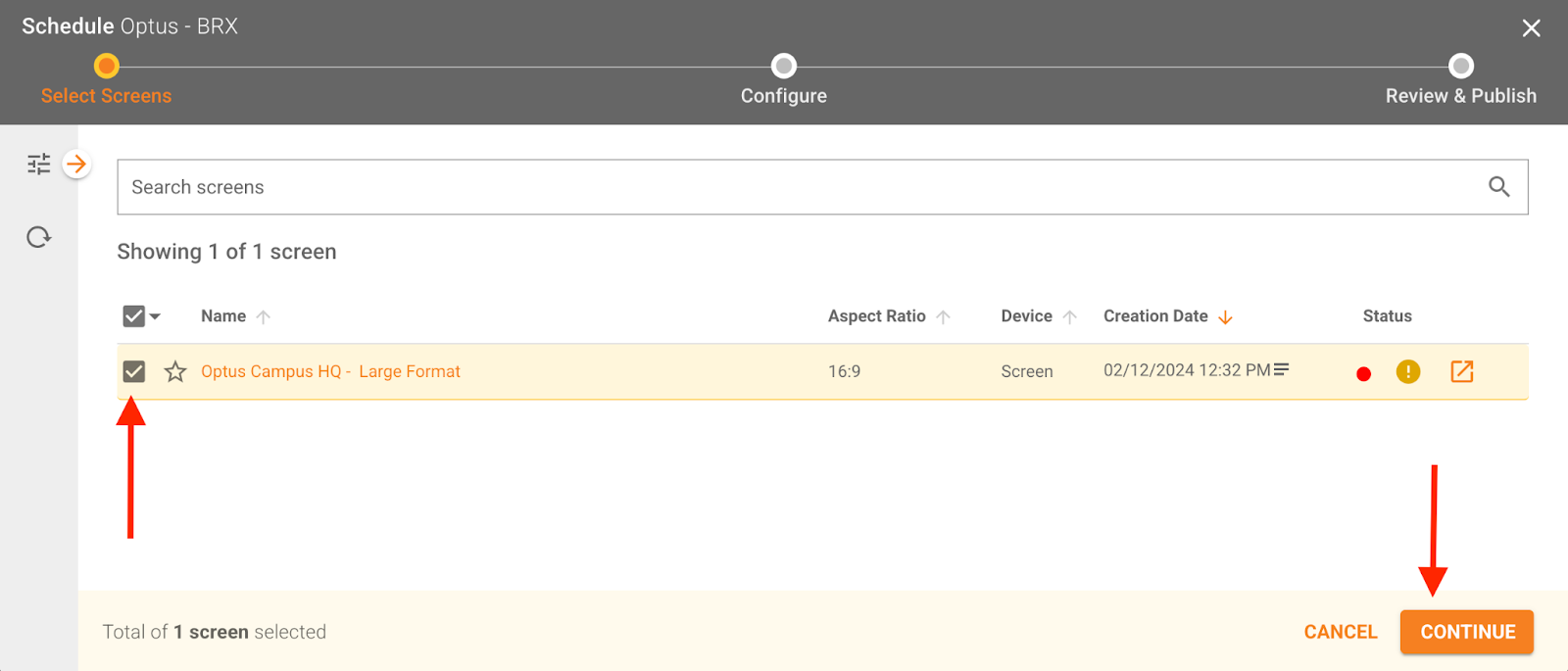
Select your screen from the popup and click “CONTINUE”
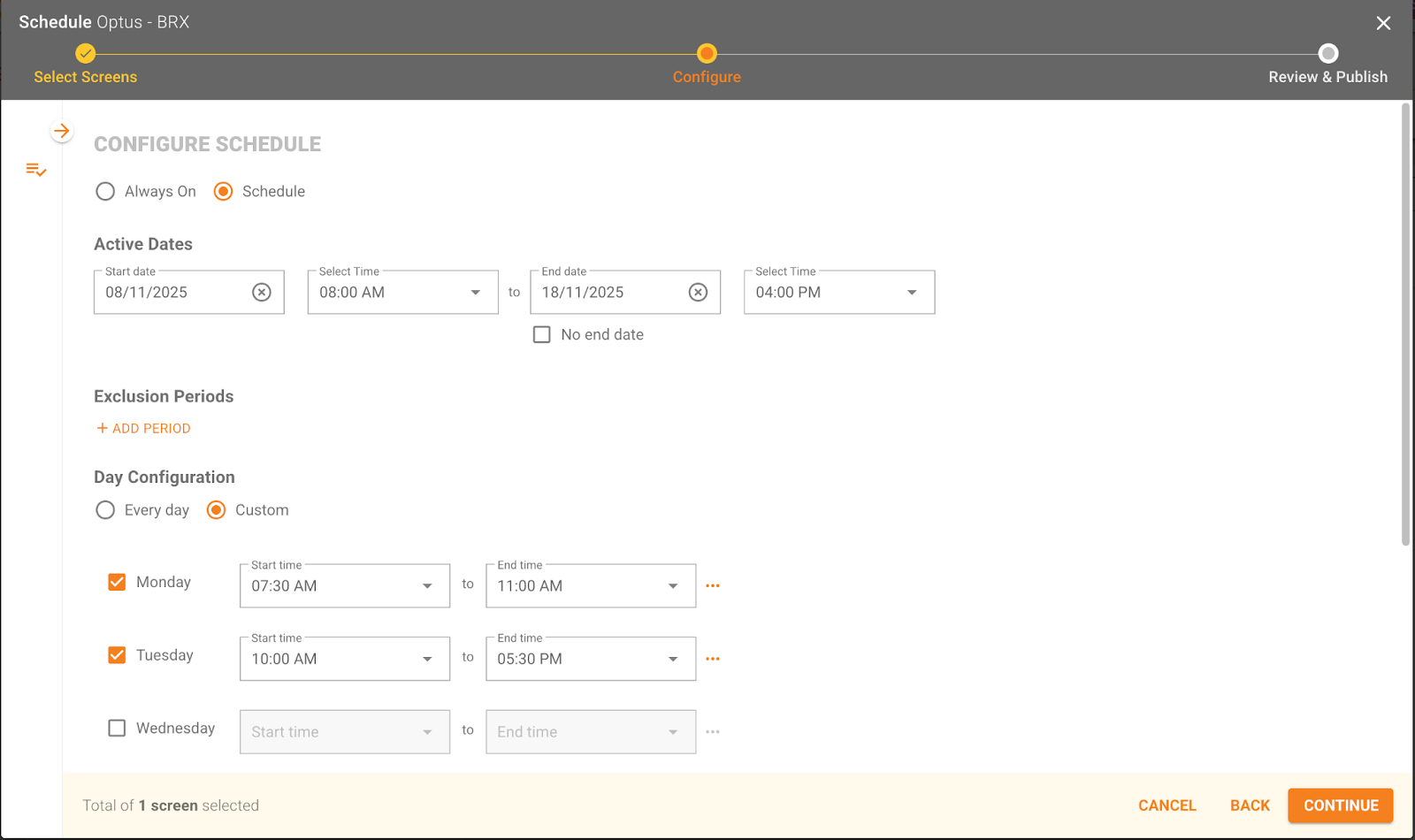
Select your configuration schedule, then click “CONTINUE” to view the summary and click “PUBLISH.” You can choose to set an advanced schedule (as shown in the screenshot below) or keep the default configuration to run the campaign as always on.
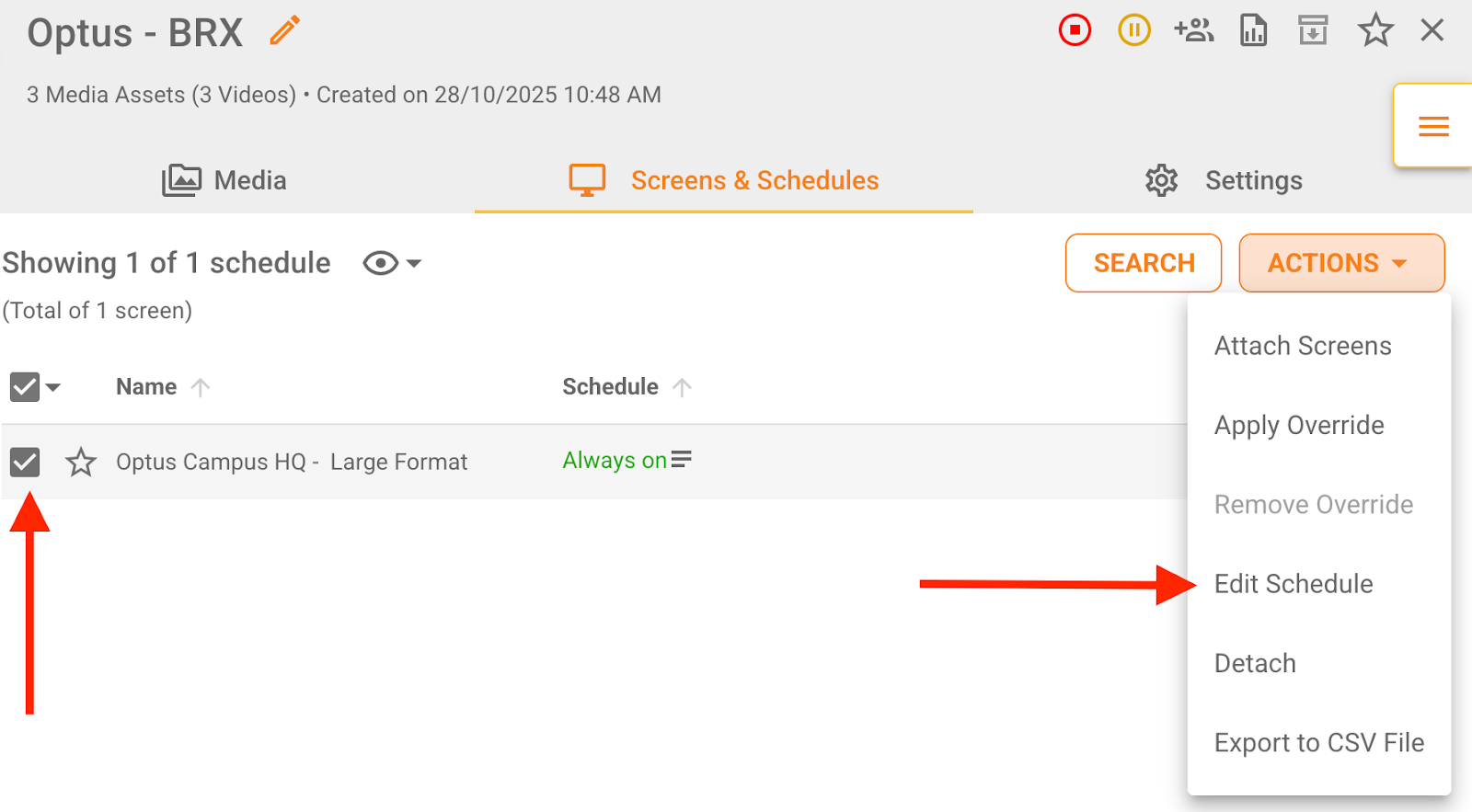
To edit a configured schedule, select your screen from the “Screens & Schedules” tab, click “Edit Schedule” from the “ACTIONS” menu, and then follow the same steps described in the previous step.
Was this article helpful?
That’s Great!
Thank you for your feedback
Sorry! We couldn't be helpful
Thank you for your feedback
Feedback sent
We appreciate your effort and will try to fix the article