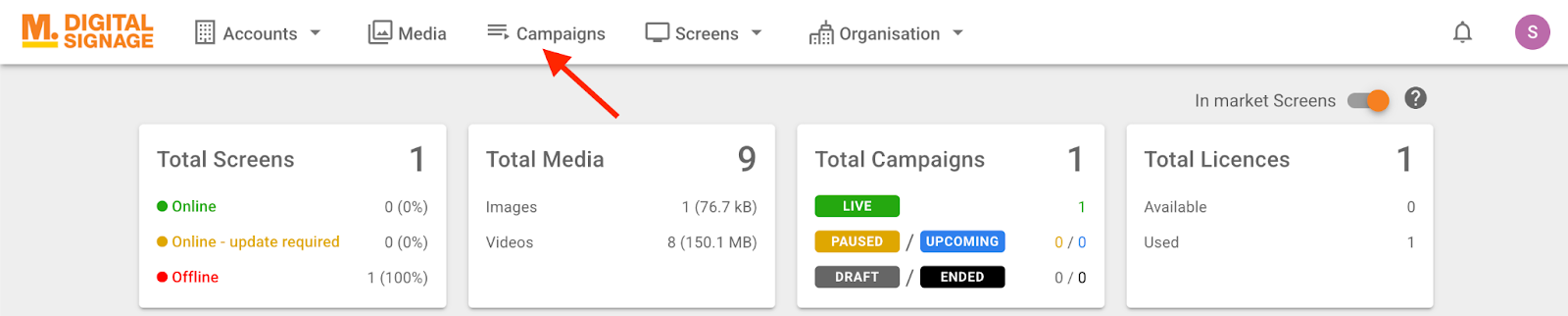
Click on “Campaigns” in the top menu.
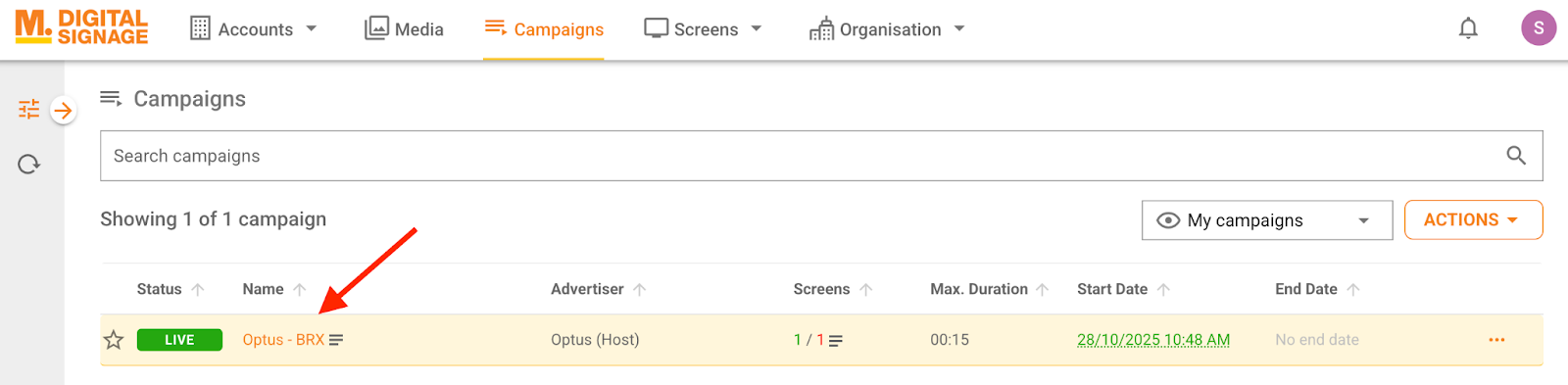
Select your desired campaign from the list by clicking on its name.
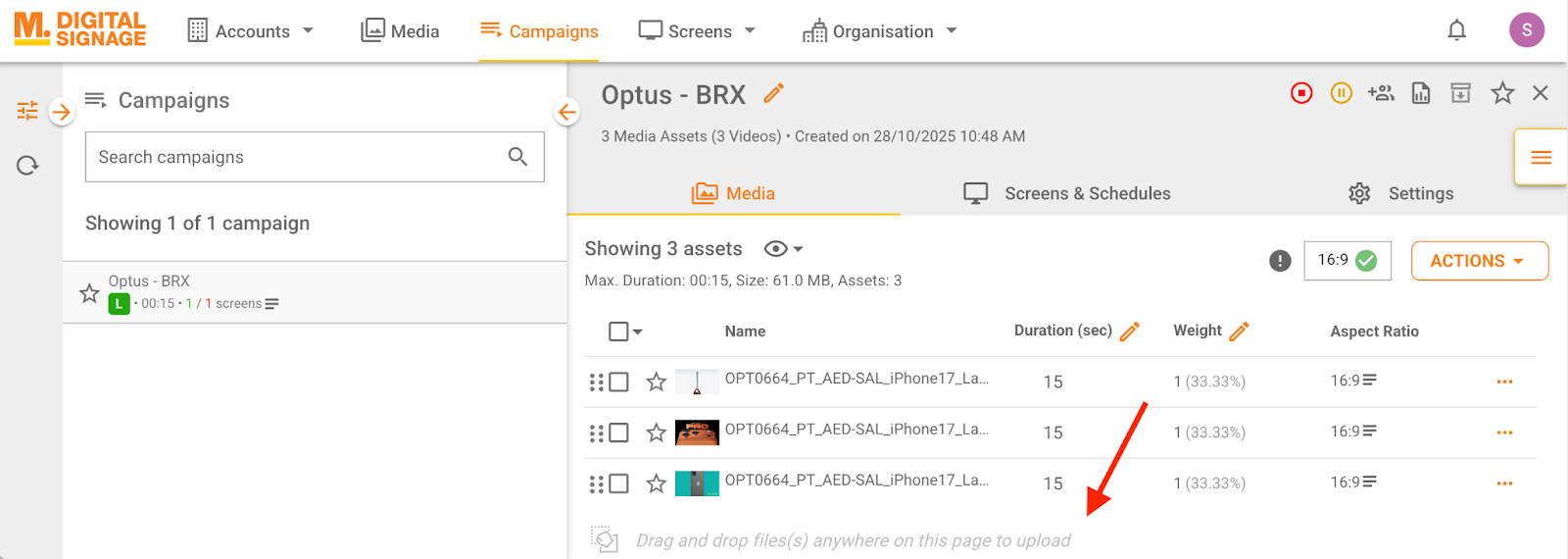
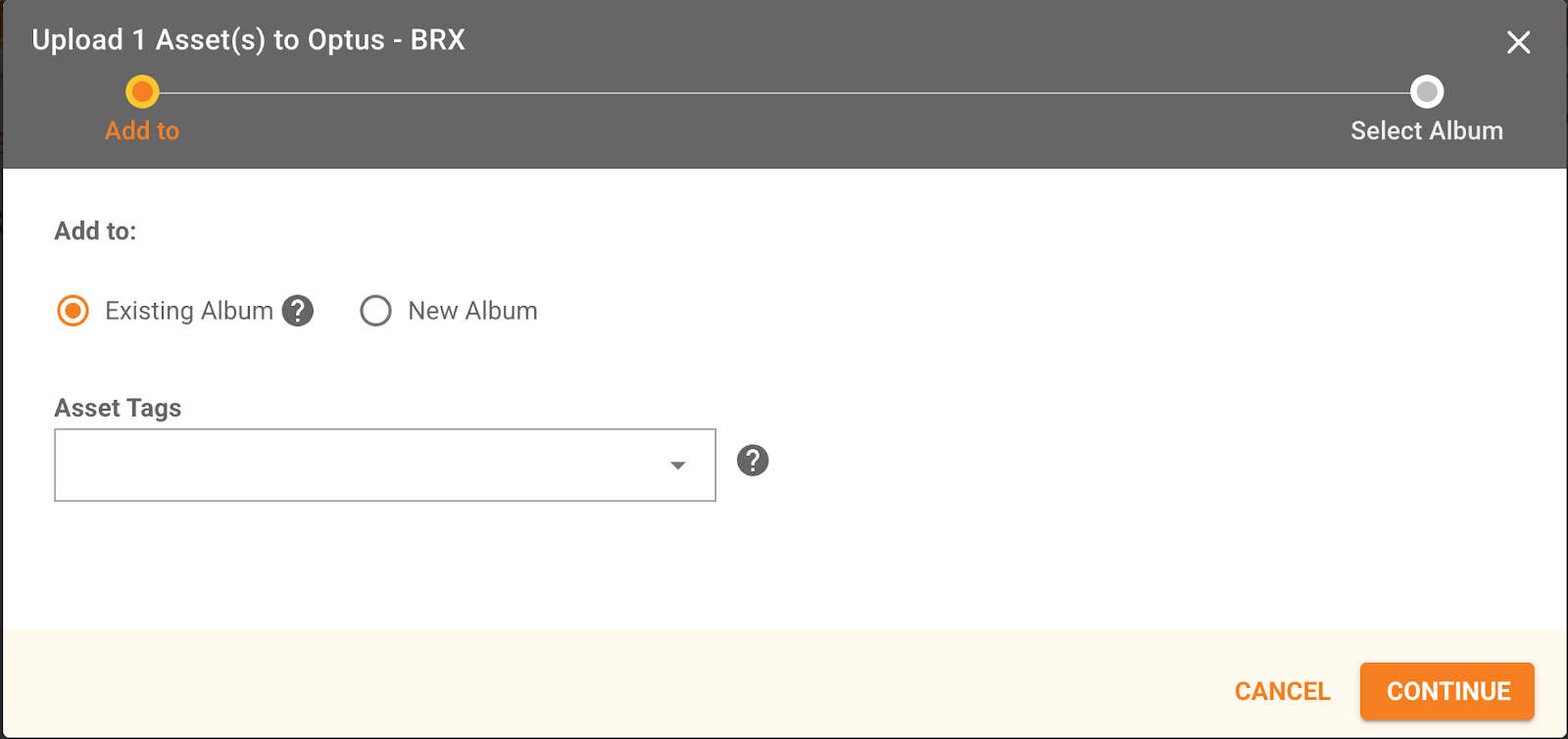
In the “Media” tab, drag and drop your images and videos from your desktop → select the “Existing Album” option in the popup and click “CONTINUE” to pick an album. You can also choose to create a new album by selecting the “New Album” option in the same popup.
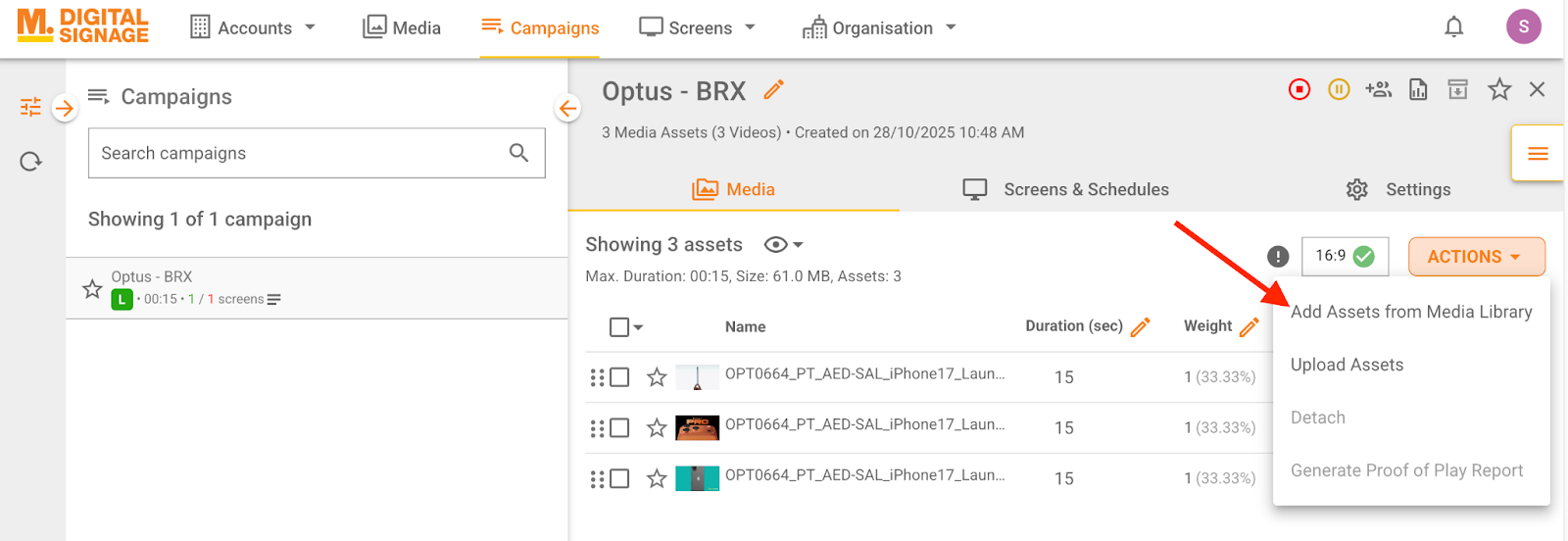
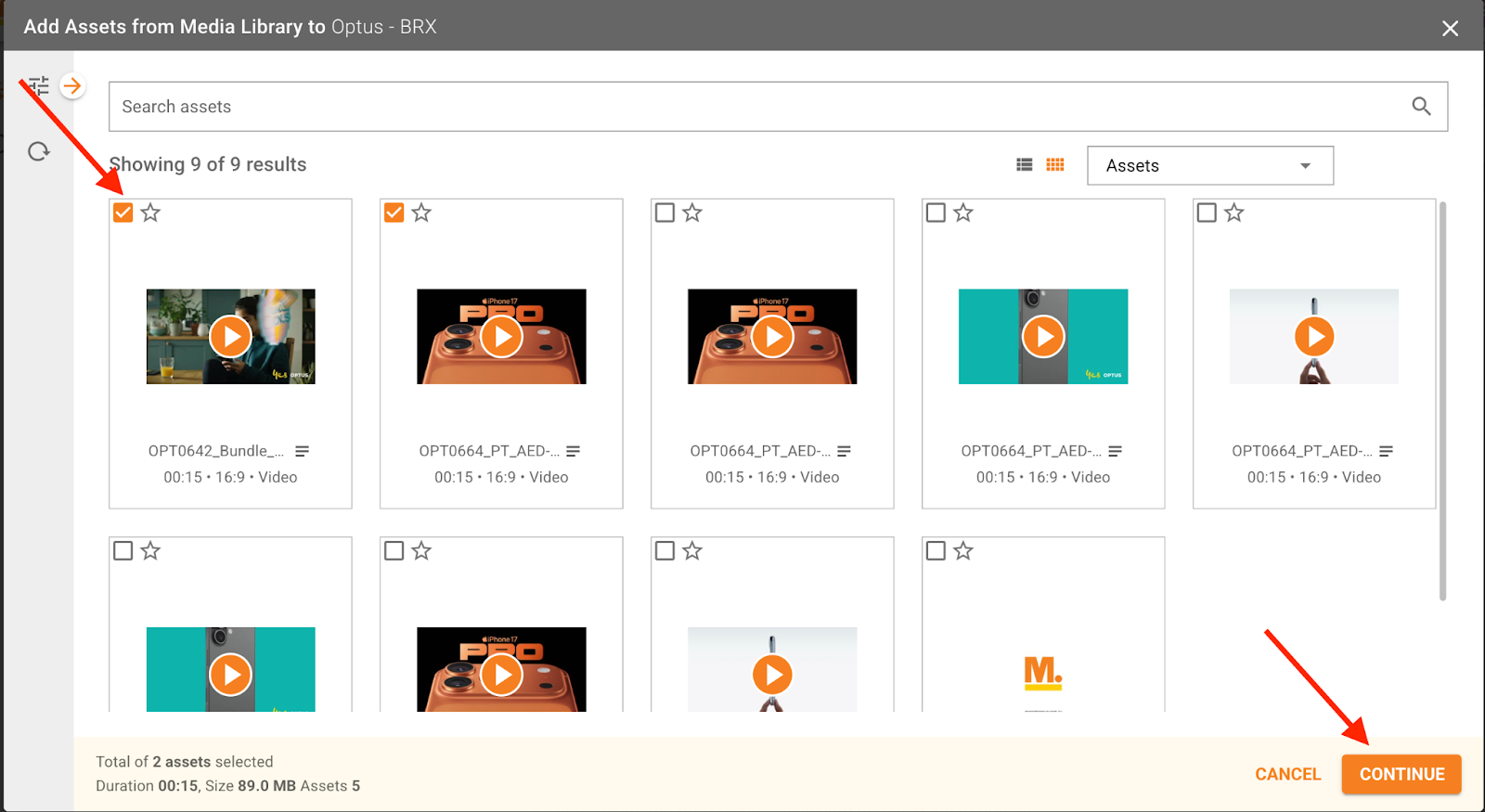
To add content from your existing media library, click on “Add Assets from Media Library” in the “ACTIONS” menu → select your assets from the popup → click “CONTINUE” and publish your changes.
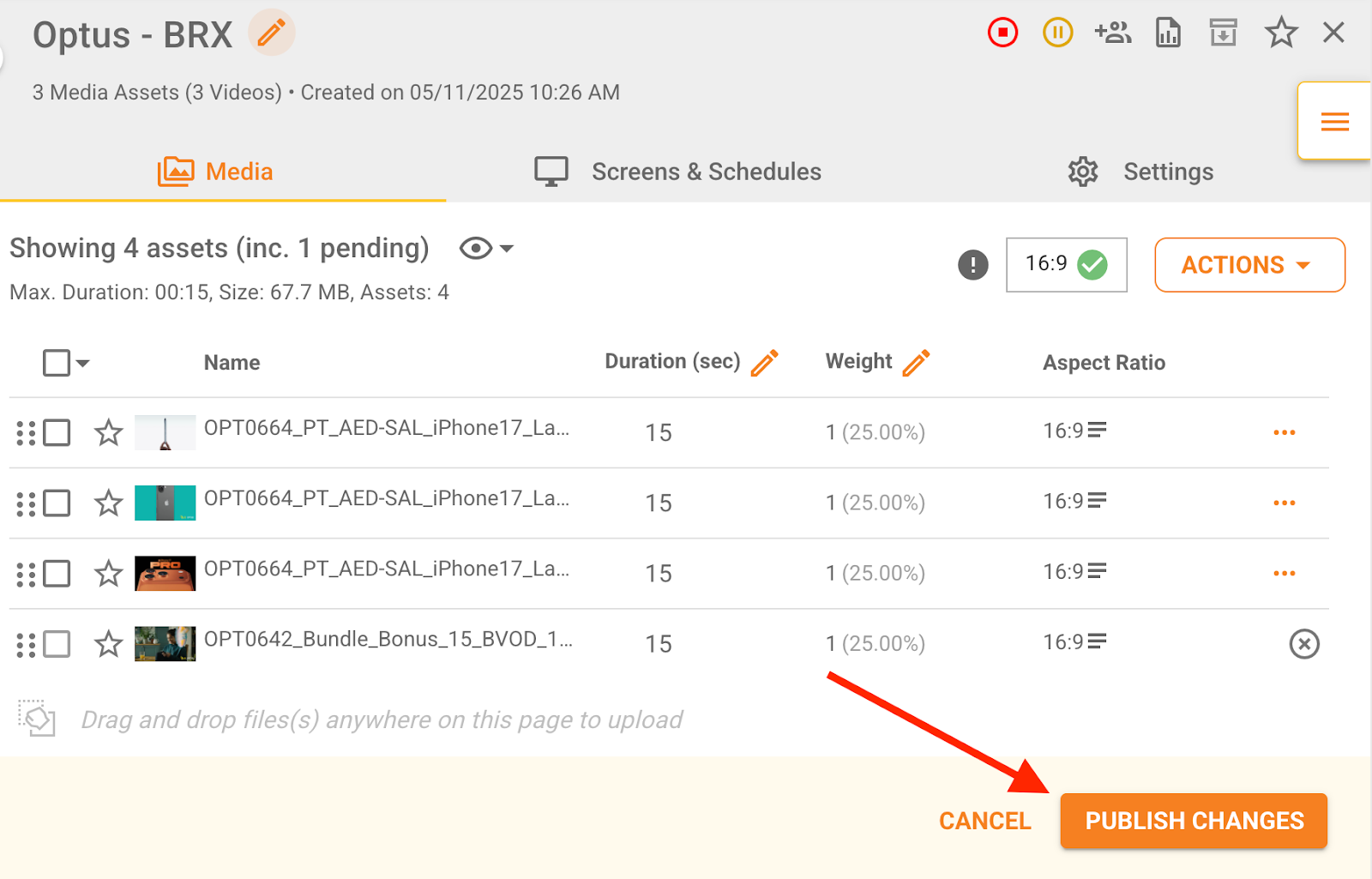
Click on the “PUBLISH CHANGES” button. If the screen is connected to the internet, the content will be despatched to the screen and start playing after the screen downloads the new content.
To remove existing content from the screen, simply select the content that you would like to remove, click “Detach” from the “ACTIONS” menu, and then click “PUBLISH CHANGES.”

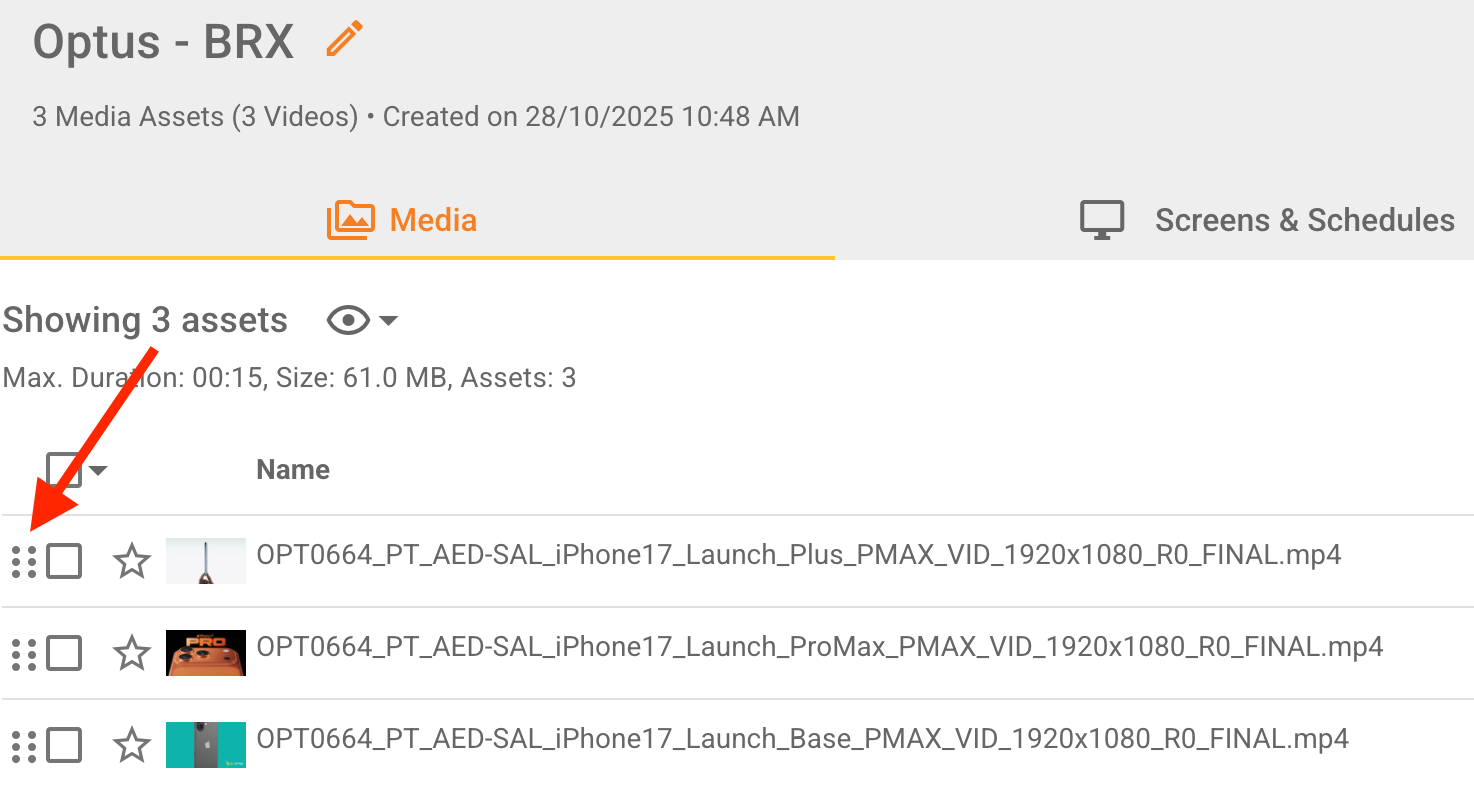
To arrange the order of the ads in the same campaign, click on the handle next to the checkbox and move it up or down to your desired location, and then click “PUBLISH CHANGES.”
Was this article helpful?
That’s Great!
Thank you for your feedback
Sorry! We couldn't be helpful
Thank you for your feedback
Feedback sent
We appreciate your effort and will try to fix the article