Upload, organise, and manage assets in albums (like folders on your computer) for easy retrieval to use later by adding them to campaigns. In addition to manually uploaded assets, MDS supports third-party asset ingestion via integrations such as Hivestack, retailer asset APIs, and the public MDS API. Users can view where assets—programmatic or otherwise—have played without accessing external platforms.
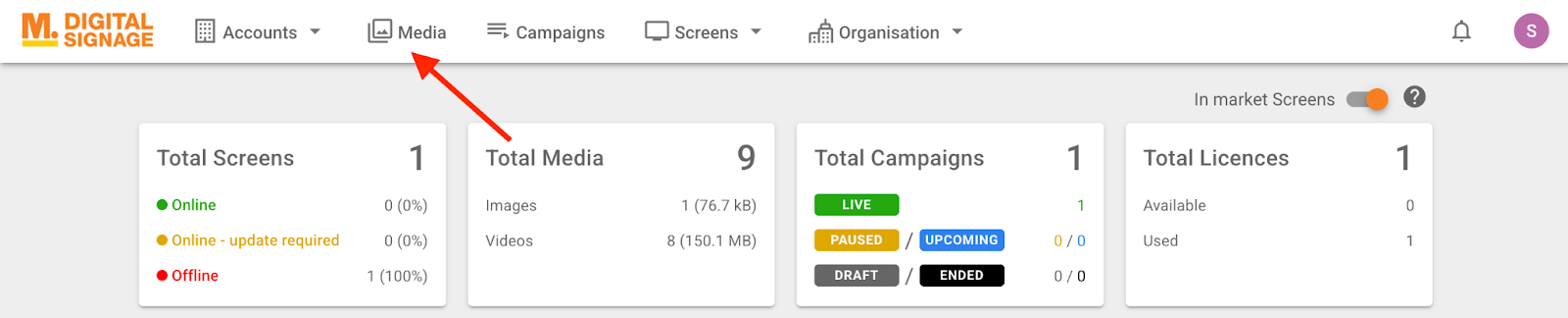
To view your existing content and upload new content, click on “Media” in the top menu.
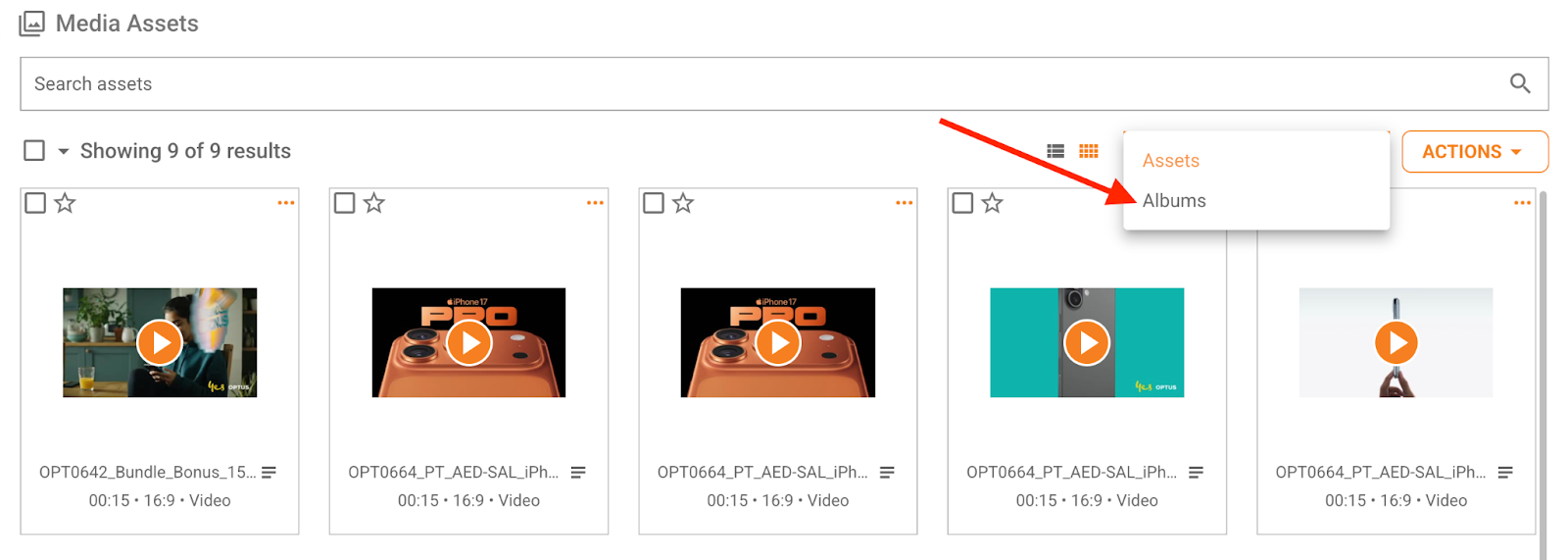
Click on “Albums” to view the list of existing albums, or stay on the default page to view all uploaded content. Clicking on any asset opens its profile page for more information, such as the campaigns it might be added to and the screens it might be running on.
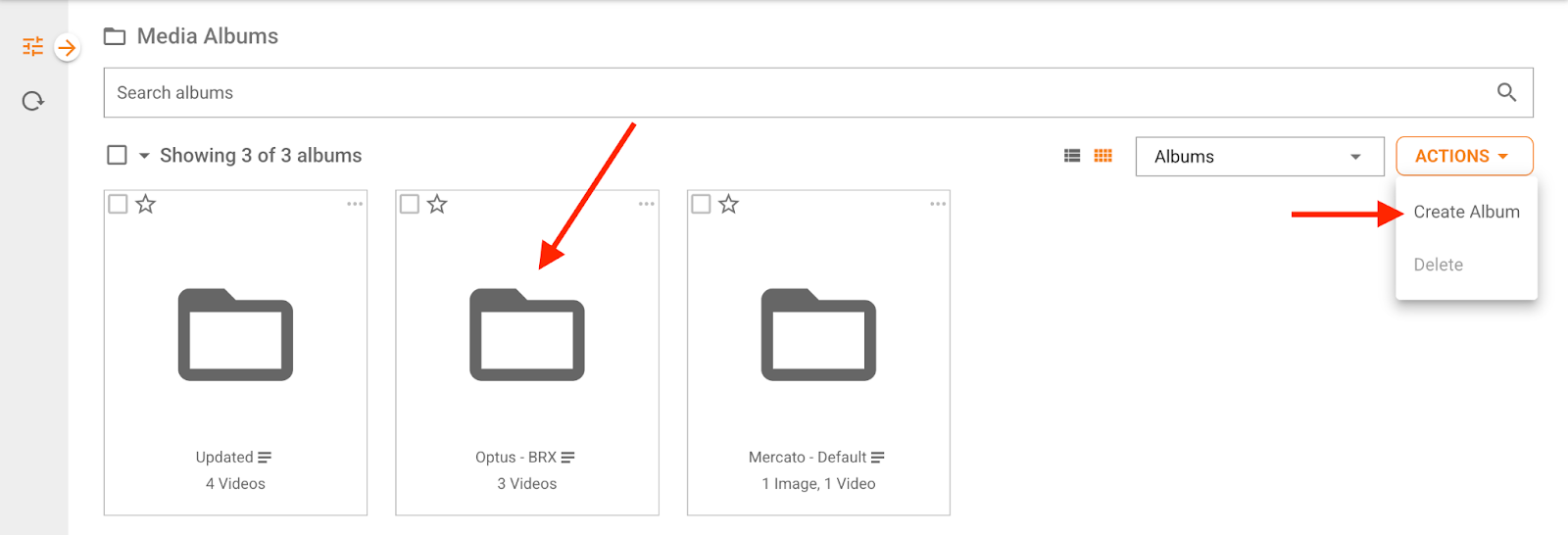
To upload new content, once you are on the albums listing page, click on an existing album if you would like to upload your new content to it, or click “Create Album” from the “ACTIONS” menu to create a new album and start uploading.
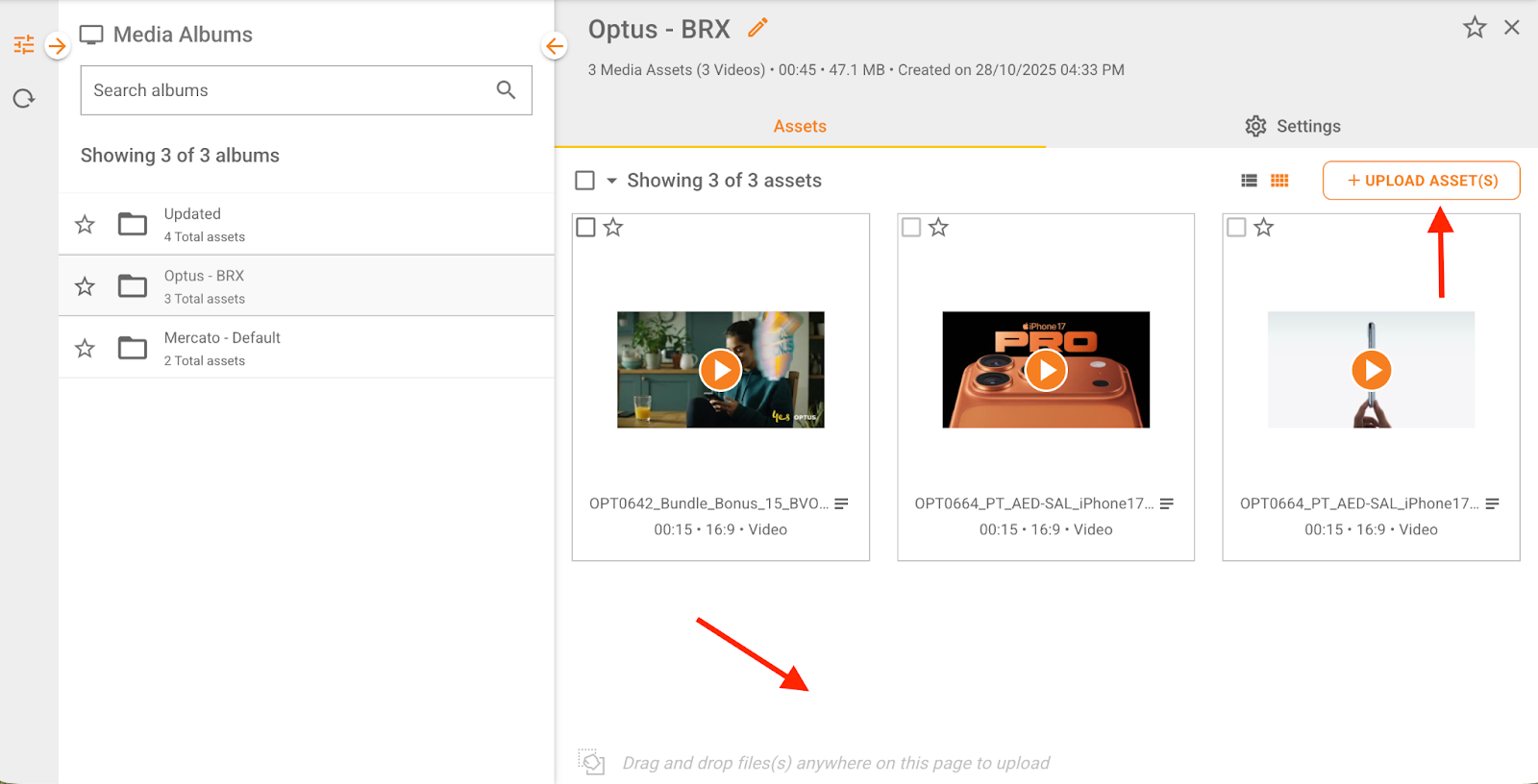
Drag and drop your images and videos from your desktop, or click on “UPLOAD ASSETS.”
To use the uploaded assets in a campaign, go to your campaign’s Media tab and follow the same steps described in the section “Managing Content in Existing Campaigns”.
Was this article helpful?
That’s Great!
Thank you for your feedback
Sorry! We couldn't be helpful
Thank you for your feedback
Feedback sent
We appreciate your effort and will try to fix the article